Workflow basics
A workflow is a reusable production pipeline built from nodes. You wire the graph once — where files come from, how they're processed, how they're arranged, which machine they go to — and you can re-run it for every shift, every batch, every order.
This page covers the node types, how to connect them, what compiling a workflow does, and how runs are tracked.
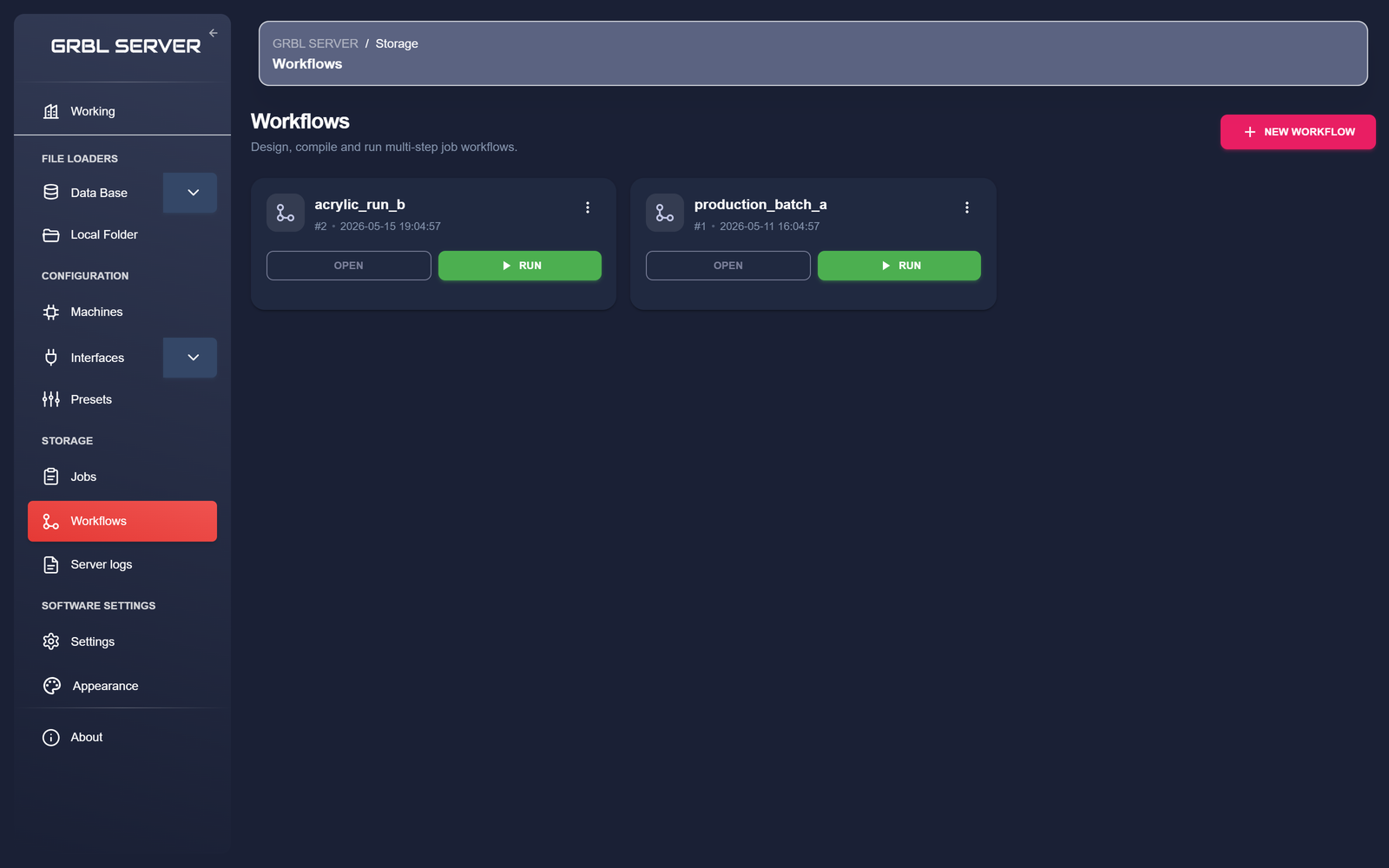
The workflows page
Storage → Workflows lists every workflow you've saved. Each row has four actions:
- Open — load the workflow in the editor for editing.
- Compile — run all upstream nodes (mediators, file filters, grid, clipping) to produce the full list of jobs the workflow would generate, without actually sending anything to a machine. Useful for dry-runs.
- Run — compile, then submit the generated jobs to the target machines.
- Delete — removes the workflow. Past workflow runs are kept for history.
Node types
You build a workflow from these node kinds. Each node has typed inputs and outputs — the editor will only let you connect compatible sockets.
| Group | Node | What it does |
|---|---|---|
| Sources | Local folder | Loads files from a local-folder group, optionally filtered by prefix/suffix/extension. |
| Mediator | Loads files from a database query. The query can take parameters injected at run time. | |
| S3 | Loads files from a folder in the configured S3 bucket, with the same prefix/suffix/extension filters as the local folder. | |
| Configuration | Preset | Applies a saved job preset (machine + interface + clipping + grid in one). Exclusive with the trio below. |
| Interface | Picks an interface (the engine parameters — handles vector, raster, and SVGs with embedded images from a single profile). Combined with Grid / Clip / Crop to build a custom job recipe. | |
| Transforms | Grid | Arranges incoming jobs in a rows × columns grid across the machine's working area. |
| Clip / Crop | Restricts each job to an SVG d path or a rectangular region. | |
| Jobs | Setup job | The convergence point. Takes a file source + a recipe (preset OR interface+grid+clip) and produces a job. |
| Linkers | Jobs linker | Combines several Setup-job branches into a single output that runs as one parallel step. Use it when one run produces several jobs across multiple machines at once. |
| End | Workflow end | The terminal node. Every workflow has exactly one. Anything connected to it gets executed when the workflow runs. |
Setup job — the convergence point
The Setup job node gathers a file source and a recipe into one job. You only connect the sockets you need, but two rules are enforced:
- Preset conflicts with Interface / Grid / Clip. Either you use a preset (which bundles those three), or you wire them in individually.
- One file source only. Local folder, Mediator, and S3 are mutually exclusive — a job pulls its files from exactly one of them.
A minimal workflow
- Drop a Local folder node onto the canvas. Pick the
defaultgroup, setextensions = svg. - Drop an Interface node. Pick
default(or one you've saved). - Drop a Setup job node. Connect:
- Local folder
files→ Setup joblocal folder - Interface
interface→ Setup jobinterface
- Local folder
- Connect Setup job → Workflow end.
- Save with the Guardar / Save button. Compile to dry-run, Run to send.
A production-grade workflow
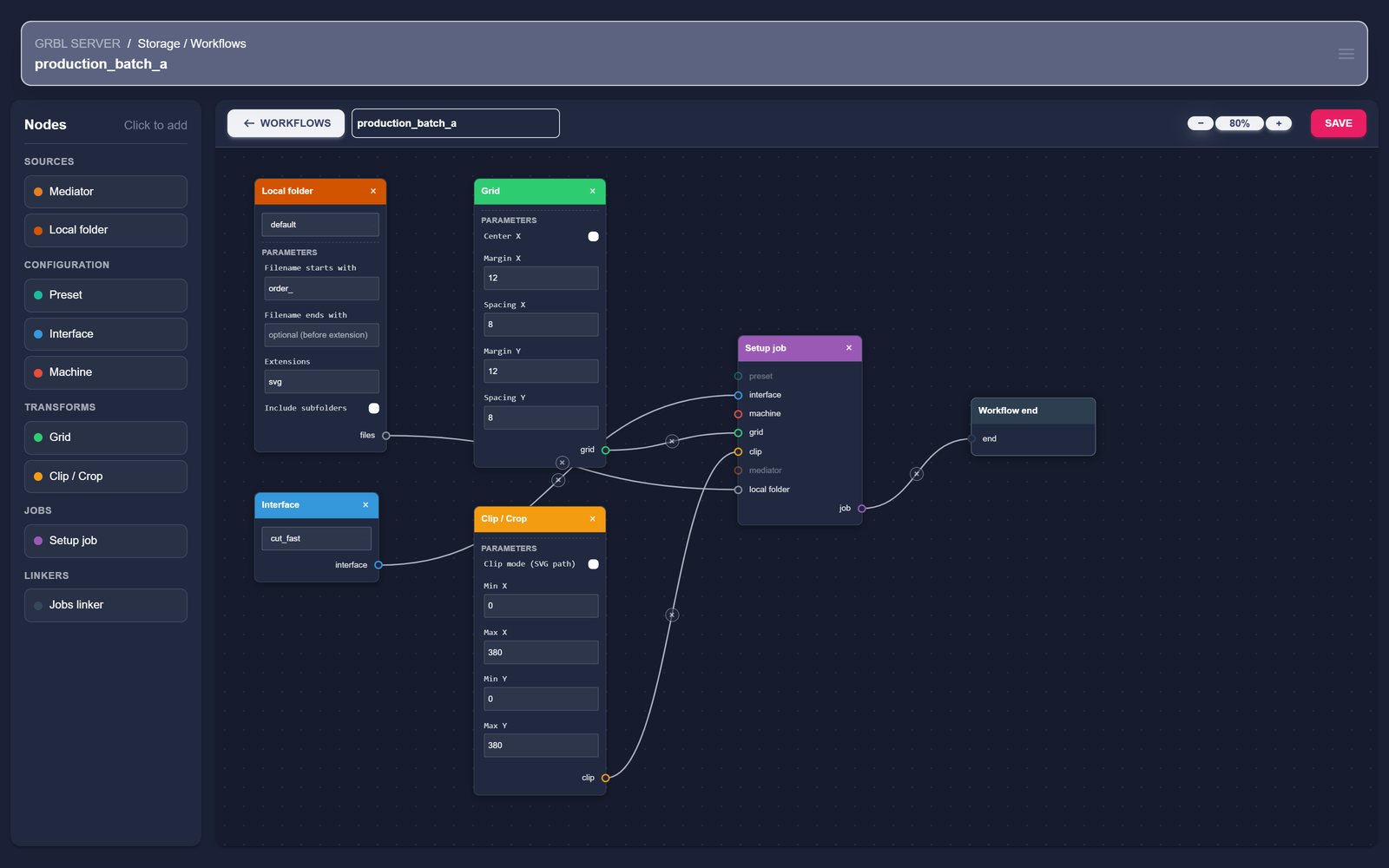
For a real workshop batch you typically wire all four left-column nodes into Setup job, like the screenshot at the top of this page:
- Local folder filtered to
prefix = order_,extensions = svg— pulls today's order SVGs. - Grid with rows × columns and gap configured for the material — tiles the order list across the sheet.
- Clip with the SVG path of the offcut you have on the bed — skips cells outside the material.
- Interface with the engine parameters tuned for that material (one interface, regardless of whether the source files are vector, raster, or mixed).
- All four → Setup job → Workflow end.
Compile vs run
Compile evaluates the whole graph and produces the list of jobs it would generate — file by file, with their final G-code — without sending anything to a machine. The compiled output lives under storage/workflows/workflow_<id>/<timestamp>/ on the host.
Run compiles, then dispatches the generated jobs — grouped into ordered steps — to their target machines.
Workflow runs
Running a workflow creates a workflow run — a step-by-step execution of the jobs the workflow compiled. Active runs appear on the Working page, each showing how far it has progressed through its steps and the machines involved.
A step is an ordered group of one or more jobs. Jobs in the same step are dispatched in parallel, each to its own machine, and the step only counts as finished once every job in it has completed. Bundle several Setup-job branches through a Jobs linker to put them in one parallel step; connect several branches straight to Workflow end to make each its own step, run one after another.
A run with more than one step pauses between steps: once a step finishes, the run waits as awaiting user until you press Continue to dispatch the next one. Abort stops a run at any point. Every run keeps a timeline of events — created, step started, step completed, failed, aborted — that you can review from View history on the Workflows page.
Zoom & pan
The editor's canvas supports:
- Zoom in / out / reset with the buttons in the top-right of the canvas.
- Pan by holding middle-mouse or space + left-mouse and dragging.
- Multi-select by left-mouse-dragging across nodes.
- Delete selection with the Delete key (Workflow end is protected — you can't delete it).